Haptics Setup Guide
Connect your haptic devices for synchronized feedback during conditioning sessions
On This Page
Overview
Conditioning Control Panel supports haptic feedback integration, allowing your toys to vibrate in sync with flash images, subliminal messages, and other conditioning events. This creates a more immersive experience.
Flash Sync
Vibrate on image popups
Subliminal Sync
Pulse with messages
Trigger Mode
React to triggers
Autonomy Mode
AI-controlled patterns
🎁 Patreon Feature
Haptic integration is available exclusively for Patreon supporters. Support on Patreon to unlock this feature!
Requirements
- Patreon subscription - Any tier unlocks haptics
- Compatible device - Lovense, We-Vibe, or other Buttplug-supported toys
- Connection software - Either Intiface Central OR Lovense Connect app
- Bluetooth - For wireless toy connection
Choosing a Provider
CCP supports two connection methods. Choose based on your device and preferences:
| Feature | Buttplug.io (Intiface) | Lovense Connect |
|---|---|---|
| Device Support | 200+ devices | Lovense only |
| Setup Complexity | Moderate | Easy |
| Latency | Lower | Slightly higher |
| Internet Required | No | No (local network) |
| Best For | Multiple/non-Lovense toys | Lovense users |
Recommendation
Lovense users: Start with Lovense Connect - it's simpler to set up.
Other devices: Use Buttplug.io/Intiface Central for the widest compatibility.
Buttplug.io Setup (Intiface Central)
1 Download Intiface Central
Intiface Central is the official Buttplug.io server application that bridges your toys to CCP.
Download Intiface CentralInstall and launch Intiface Central. You'll see the main interface:
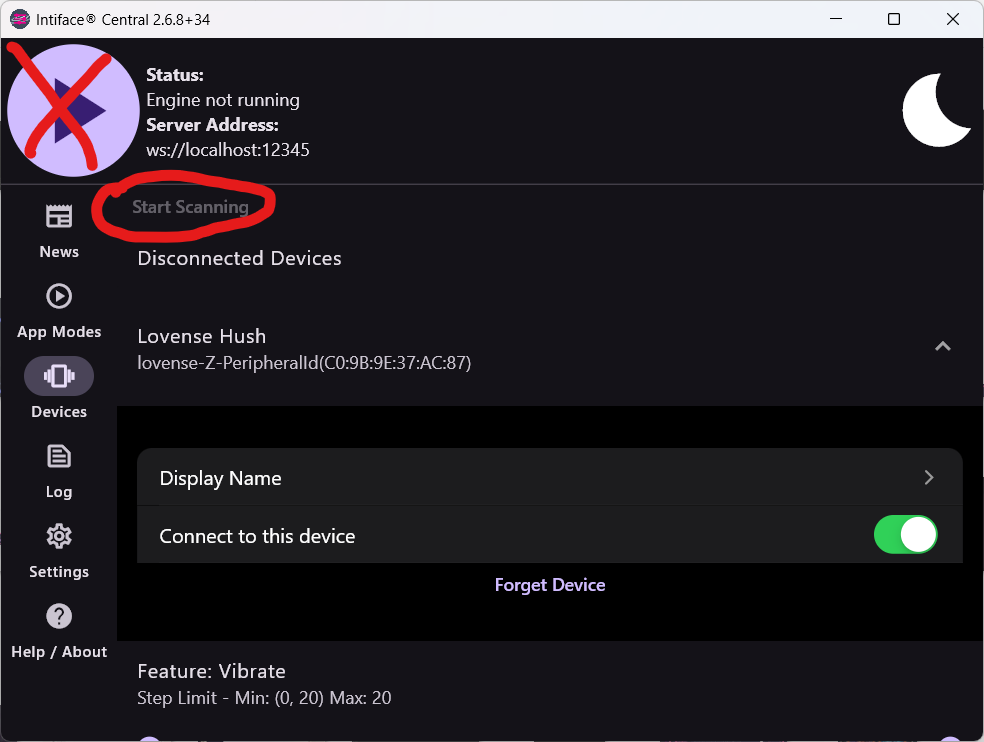
2 Start the Server & Connect Device
- Click "Start Server" in Intiface Central
- Make sure your toy is turned on and in pairing mode
- Click "Start Scanning" to discover devices
- Your device should appear in the list once detected
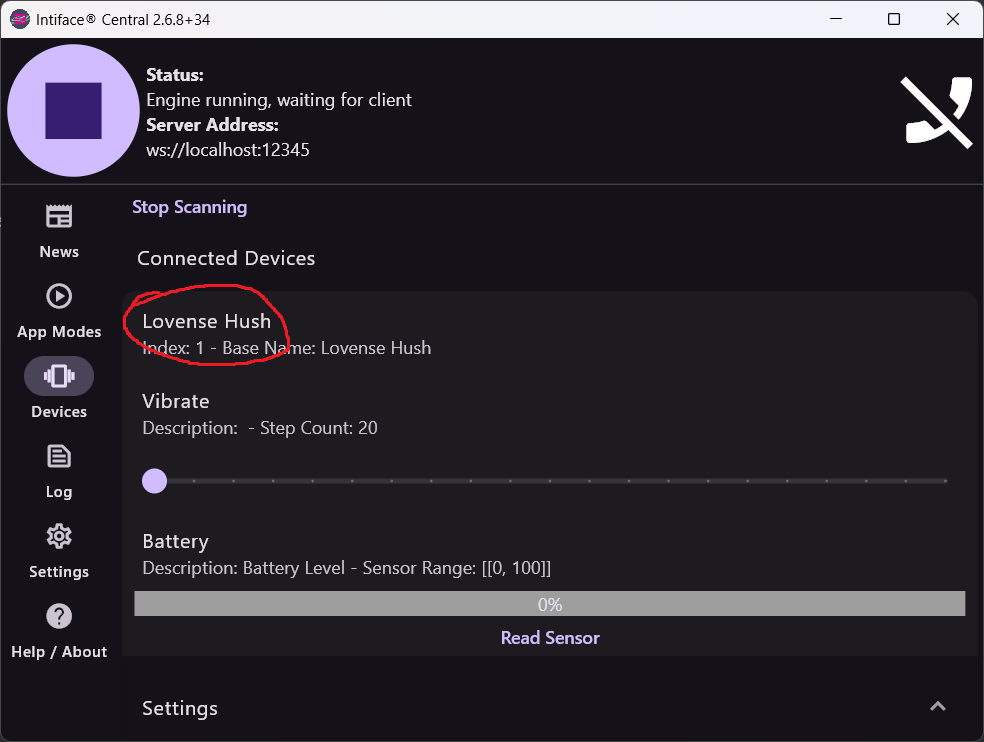
Server Settings
The default WebSocket address is ws://127.0.0.1:12345 - CCP uses this automatically. Keep Intiface running while using CCP.
Lovense Connect Setup
1 Install Lovense Connect
Download and install the Lovense Connect app on your PC:
Download Lovense ConnectAfter installation, pair your Lovense toy via Bluetooth:
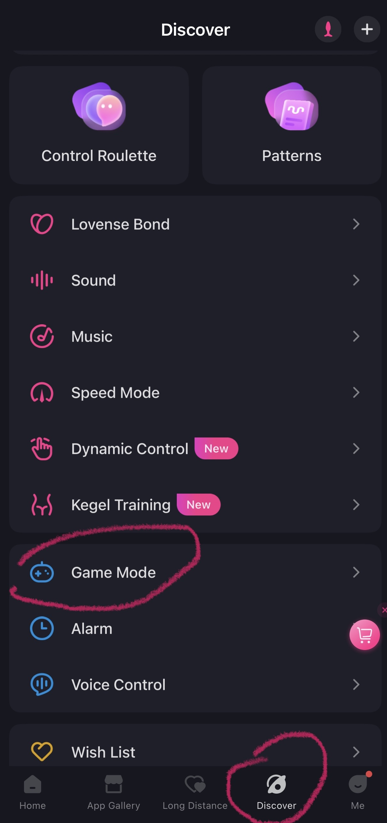
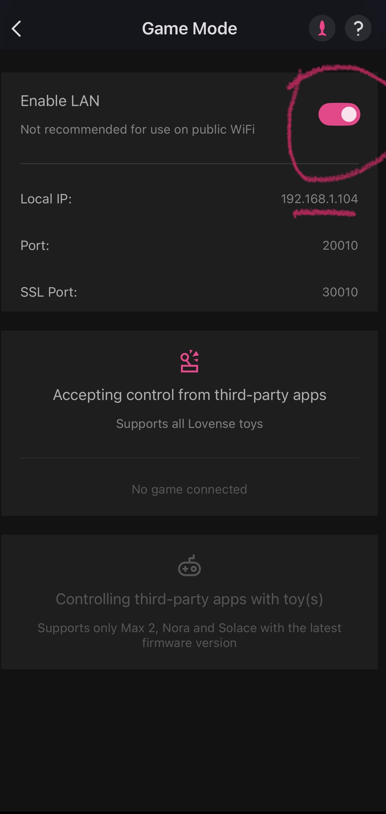
2 Enable Local API
- Open Lovense Connect settings
- Enable "Game Mode" or "Enable Local API"
- Note the local IP and port (usually
127.0.0.1:20010) - Your toy should show as connected
Ready!
Once you see your toy connected with a green indicator, you're ready to configure CCP.
CCP Configuration
1 Open Haptics Settings
In CCP, navigate to the Settings tab and find the Haptics section.
2 Select Provider
Choose your connection method from the dropdown:
- Buttplug.io - If using Intiface Central
- Lovense - If using Lovense Connect
3 Connect
- Make sure your provider software is running (Intiface or Lovense Connect)
- Click the "Connect" button in CCP
- Status should change to "Connected"
- Use the Test button to verify - your toy should vibrate!
4 Configure Intensity
Adjust the haptic settings to your preference:
- Intensity - Base vibration strength (0-100%)
- Flash Sync - Enable vibration on flash images
- Subliminal Sync - Enable vibration on subliminal messages
Troubleshooting
Connection Issues
Can't Connect?
- Make sure Intiface/Lovense Connect is running before clicking Connect in CCP
- Check that your toy is turned on and has battery
- Try restarting the connection software
- Ensure no other apps are using the toy connection
Buttplug.io Specific
- Server won't start: Check if another instance is running, or if port 12345 is in use
- Device not found: Put your toy in pairing mode and click "Start Scanning" again
- Connection drops: Keep Intiface Central in the foreground, or check Bluetooth range
Lovense Specific
- API not responding: Make sure "Game Mode" is enabled in Lovense Connect settings
- Wrong port: Check the port number in Lovense Connect matches CCP settings
- Toy not showing: Re-pair the toy via Bluetooth in Lovense Connect
Still Having Issues?
Join our Discord community for help, or check the GitHub issues page.